Photo to TextPhoto to Text

DeepSeek OCR for Documents — Image to Word

Turn hard-to-read document photos and PDFs into editable Word — DeepSeek OCR keeps headings, lists, and tables instead of dumping everything into one block of text.

  • Keep layout
  • Hard scans & PDFs
  • Export to Word

Drop images here

or click to browse, paste from clipboard, or drop · JPG PNG WEBP GIF BMP HEIC TIFF

Why choose DeepSeek OCR when layout matters

Built for people who need more than plain photo-to-text — when the page structure has to survive the conversion.

Structure, not a wall of text

DeepSeek OCR is made for documents: it reads complex pages and keeps headings, lists, and tables intact — so you spend less time fixing what basic OCR scrambled. When the page is a table you need in a spreadsheet, take it to JPG to Excel to edit cells and download XLSX, CSV, or TSV.
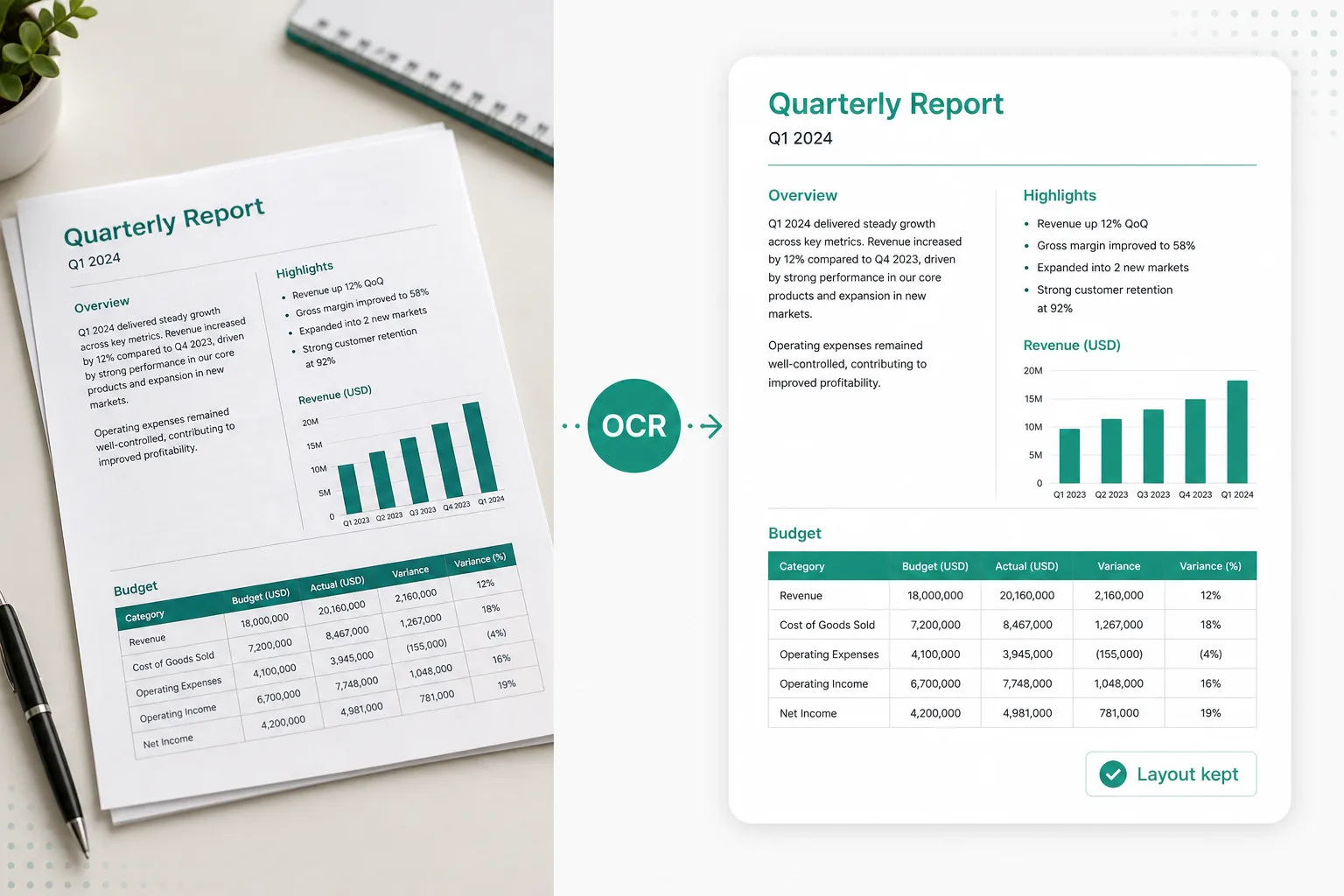
DeepSeek OCR converting a document photo into structured layout for Word or Excel
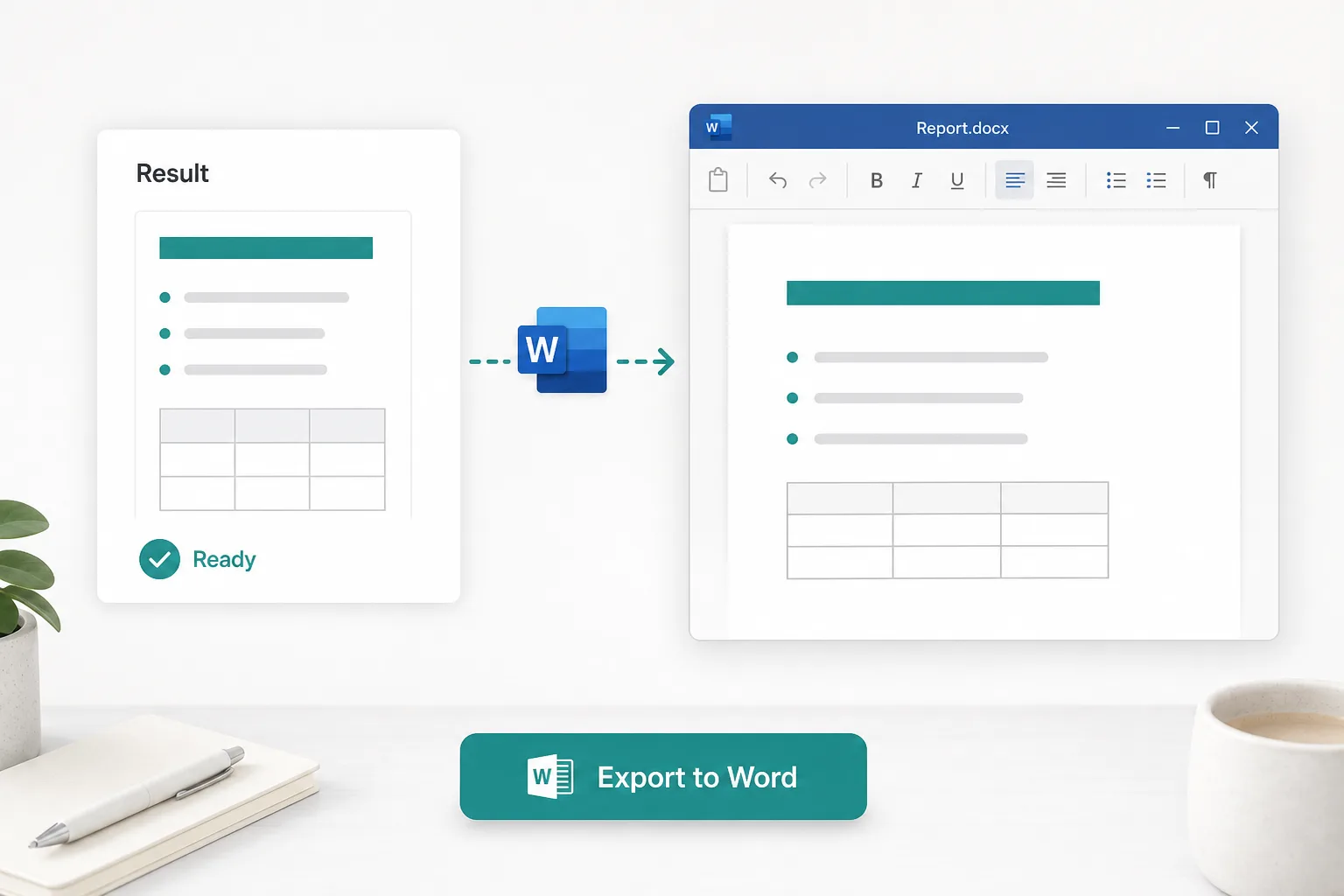
DeepSeek OCR result exported as an editable Word document

Download editable Word

After DeepSeek OCR finishes, export a .docx with formatting kept. Need every image-to-Word mode on one page?

Open JPG to Word
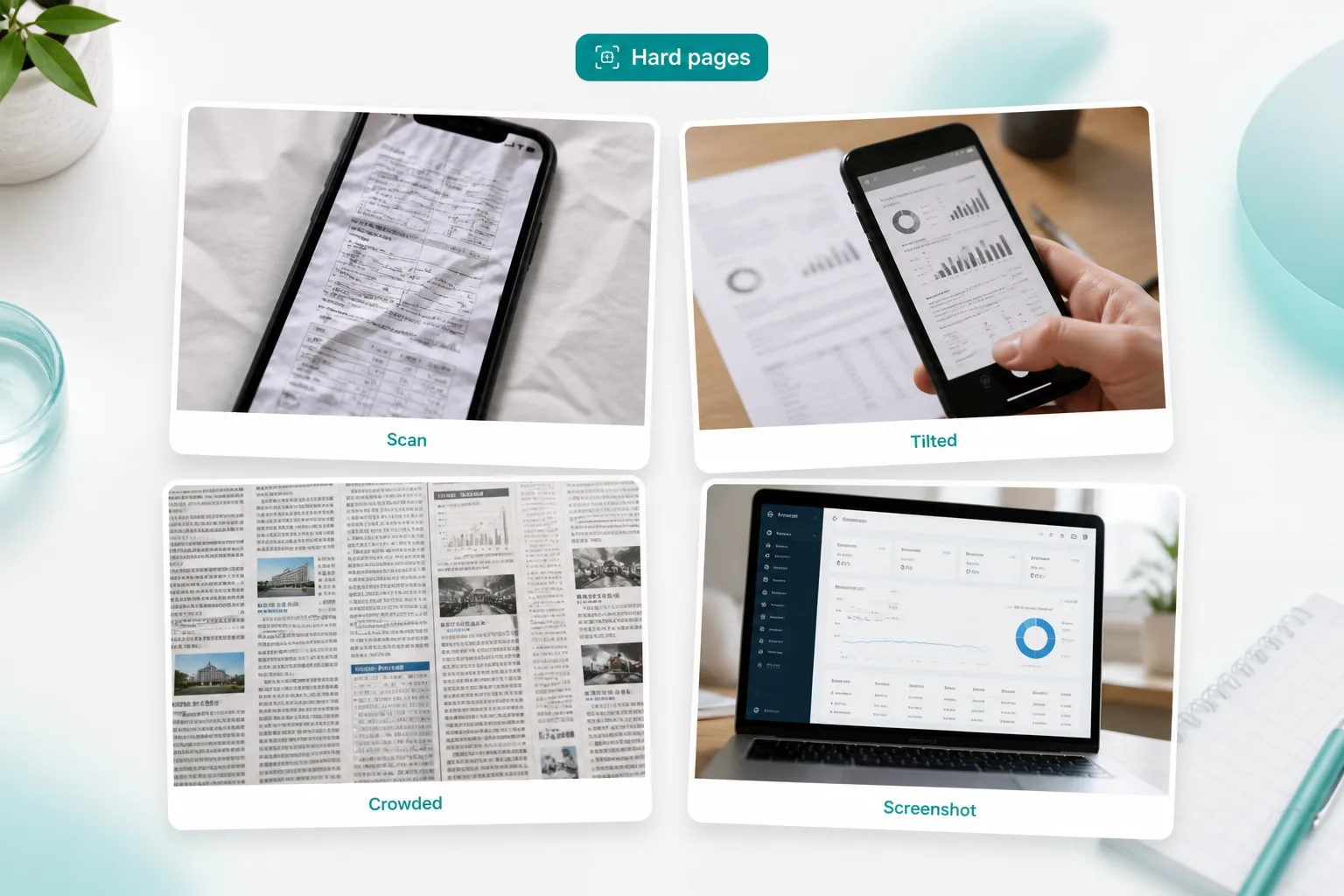
DeepSeek OCR handling hard document scans and screenshots

Built for hard pages

Scans, tilted shots, crowded layouts, and text-as-image screenshots — DeepSeek OCR aims to keep the structure readable when Simple OCR is not enough.

How to convert with DeepSeek OCR in 3 steps

From a photo or PDF page to a Word file you can edit.

  1. 1

    Upload a photo or PDF

    Drop a document image, scan, screenshot, or PDF page into the converter above.

  2. 2

    Run DeepSeek OCR

    DeepSeek OCR recovers layout as structured markdown — headings, lists, and tables included.

  3. 3

    Download Word

    Review the result, then export a .docx you can open in Word or Docs.

Basic OCR vs DeepSeek OCR

Use Simple OCR for clear screenshots. Reach for DeepSeek OCR when the page is dense, scanned, or layout-heavy.

Basic OCR

Fast for clear, simple shots — but multi-column pages, tables, and scans often become a flat paragraph you still have to clean up by hand.

DeepSeek OCR

Document-focused OCR that aims to keep headings, lists, and tables intact, then export to Word — so hard pages stay usable.

See pricing for Advanced OCR

Everyday jobs for DeepSeek OCR

When the words live in a picture — and you need the structure, not just a text dump.

DeepSeek OCR on documents and notes exported to Word

Notes, contracts, and reports to Word

Turn textbook photos, lecture slides, and scanned paperwork into structured text you can edit. Prefer a general image to Word page?

Try JPG to Word
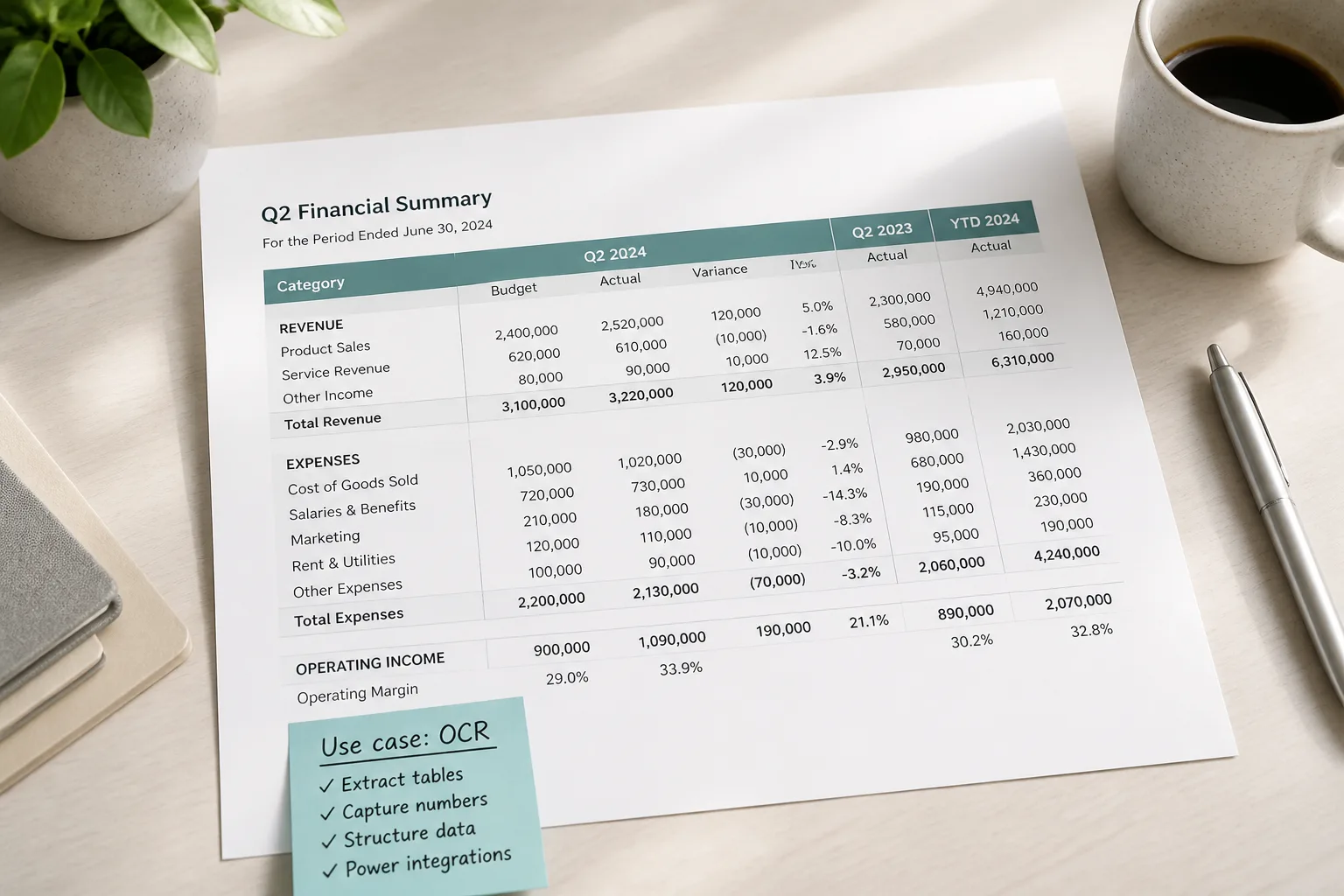
DeepSeek OCR preserving table and multi-column layout

Tables & multi-column layout

Keep columns and tables more readable when basic OCR flattens the page. Need a real spreadsheet?

Open JPG to Excel
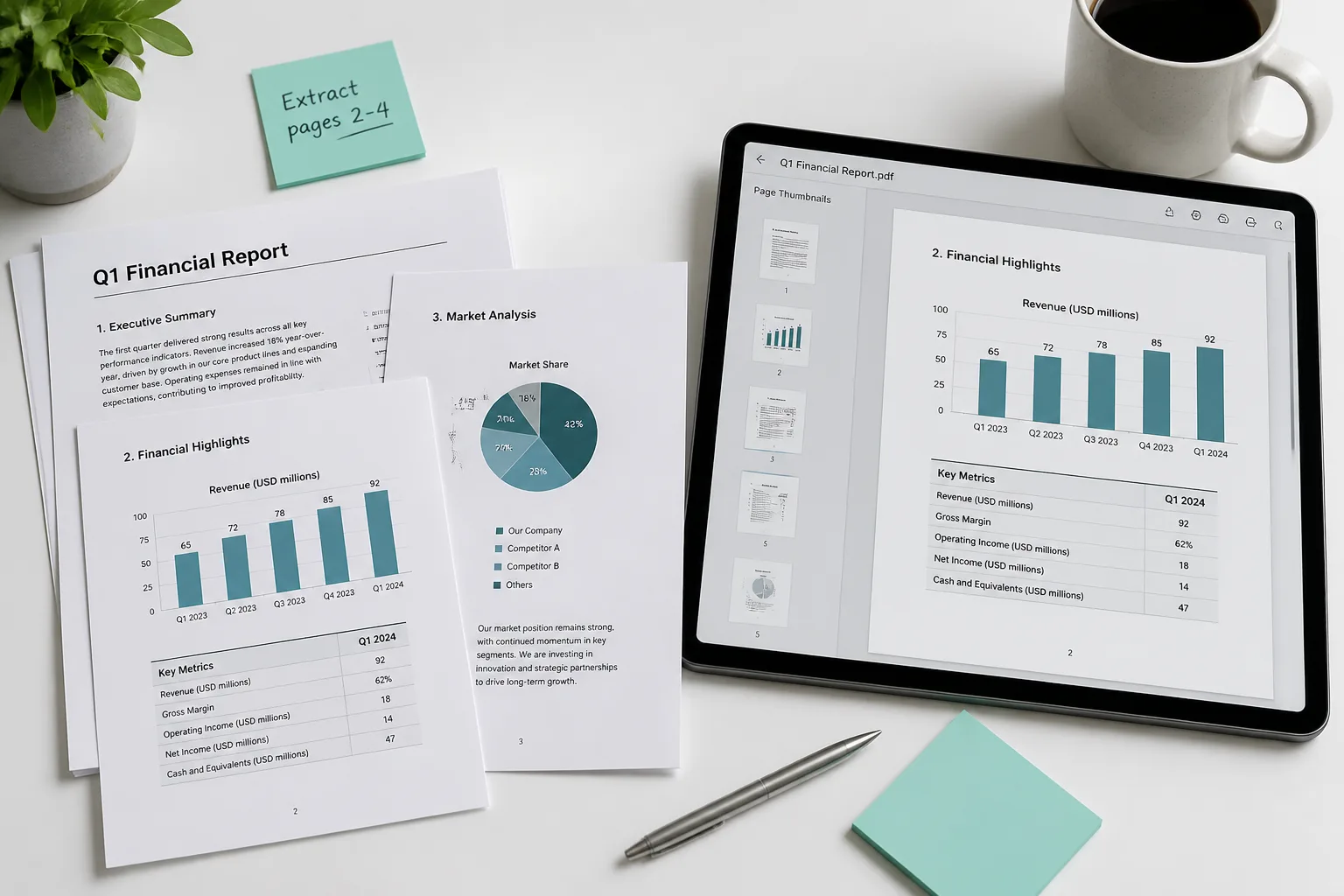
DeepSeek OCR extracting text from a PDF or scanned page

PDF & scanned pages

Recover text from PDF pages and paper scans when copy-paste is not an option.

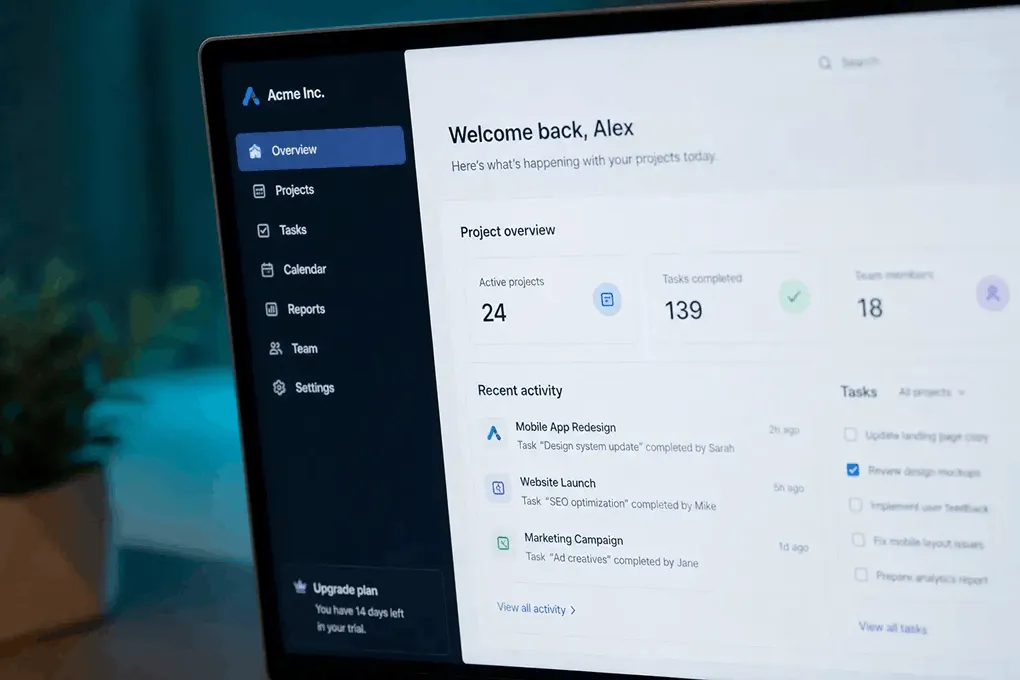
DeepSeek OCR on a screenshot with locked text selection

Screenshots you cannot select

When the app locks selection and the text is only an image, convert with DeepSeek OCR and export Word.

Frequently asked questions

What is DeepSeek OCR?
DeepSeek OCR is a document-focused OCR model (also known as deepseek ocr model / DeepSeek vision). On this page you upload a photo or PDF, get structured text that keeps layout, and download Word.
When should I use DeepSeek OCR instead of basic OCR?
Use DeepSeek OCR for dense documents, scans, multi-column pages, tables, or text-as-image screenshots — whenever basic OCR turns the page into a messy paragraph.
Can DeepSeek OCR process PDFs and text as image?
Yes. Upload PDF pages, scans, photos, and screenshots where the text lives only as an image — then download Word from the result.
Will I get an editable Word file?
Yes. After conversion you can download a .docx with formatting kept. For more Word export options, use JPG to Word.
Do you store my images?
Your privacy is protected! No data is transmitted or stored for guest conversions, and guest results are not kept as account history. If you sign in and save Results, you can delete them anytime — you stay in control. Unused Results are also cleared automatically after about 14 days.
How is this different from GLM OCR?
Both are Advanced OCR options for Keep formatting. This page locks DeepSeek OCR for strong document layout; you can also try GLM OCR on its model page.

Ready to convert with DeepSeek OCR?

Jump back to the converter and turn a document photo or PDF into Word.