
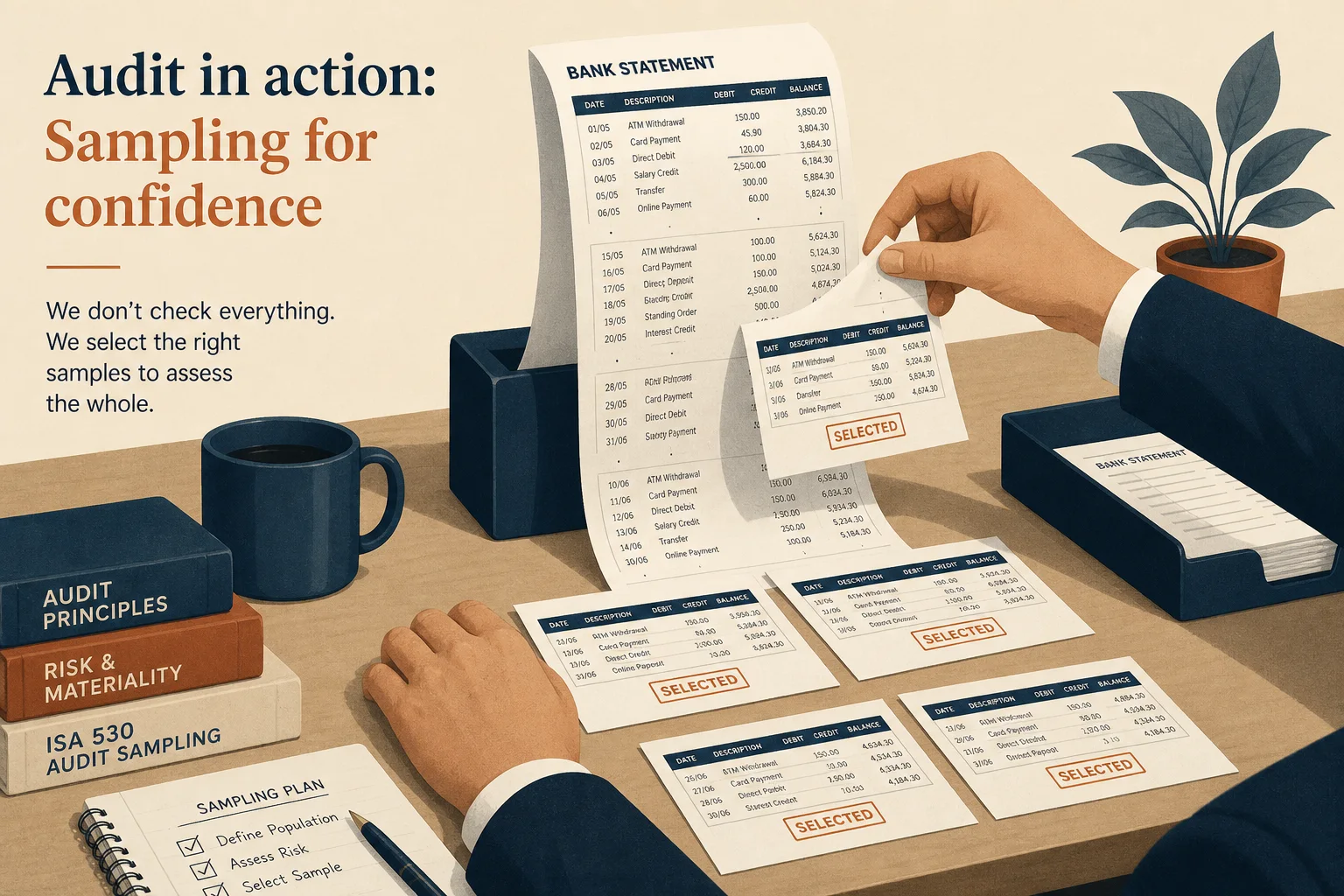
Auditor sample
Hand over only the pages requested from a long statement.
Pull specific statement months, invoice sheets, or exhibits into a new file — then convert when the numbers still sit on the page.
Drop a long statement or invoice PDF
Files stay in your browser for this tool.
Keep only what the review needs.
Drop a multi-page statement or vendor pack.
Check the pages to keep in the new file.
Save the extract, or continue to Excel OCR.
Different from a simple page-range split when pages are scattered.
Non-contiguous pages
Keep page 2, 5, and 9 only
Single exhibit
Pull one attachment from a binder
One statement month
Isolate a period for review
Works with Split
Use Split for a continuous range
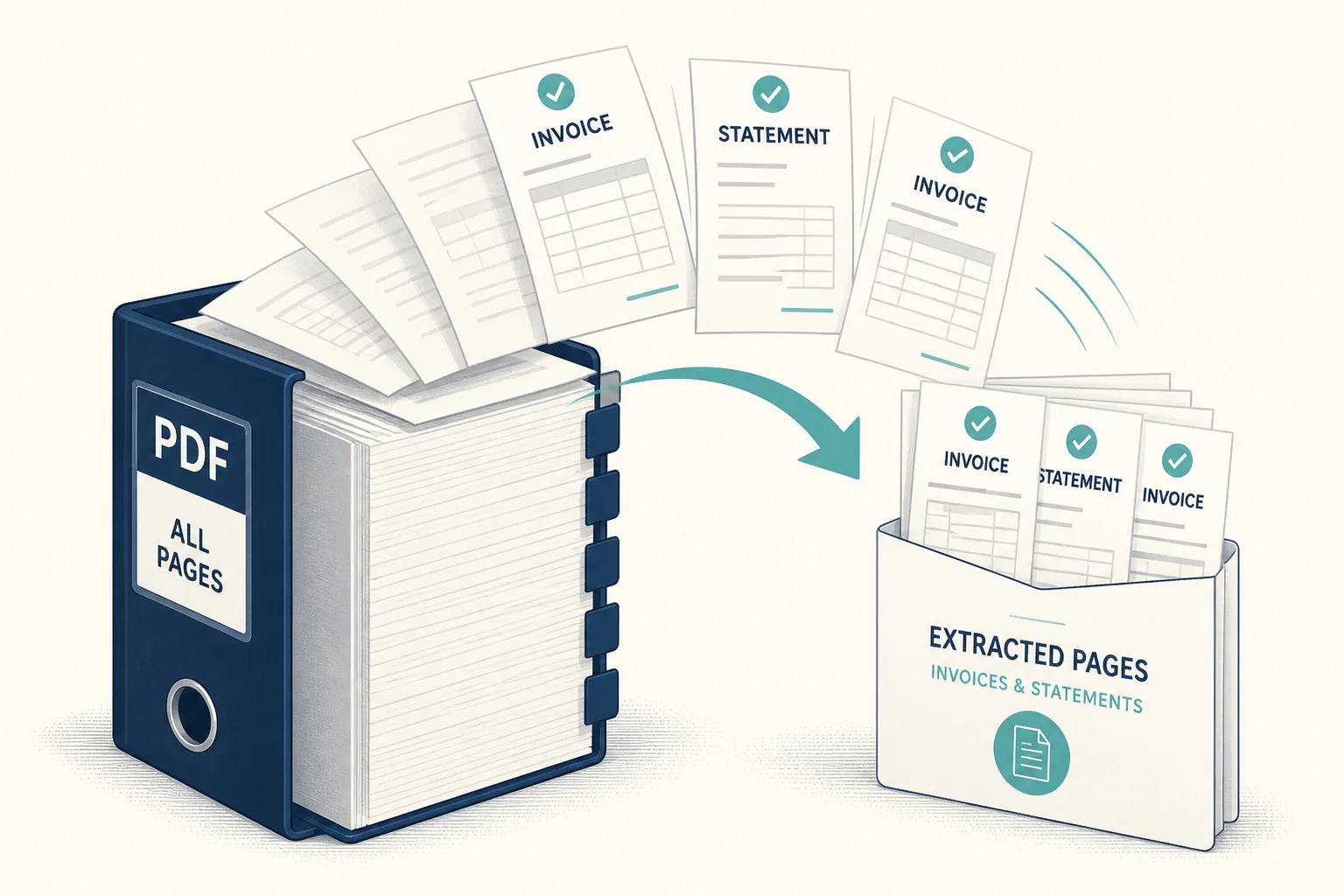
Send less — keep the proof you need.
Hand over only the pages requested from a long statement.
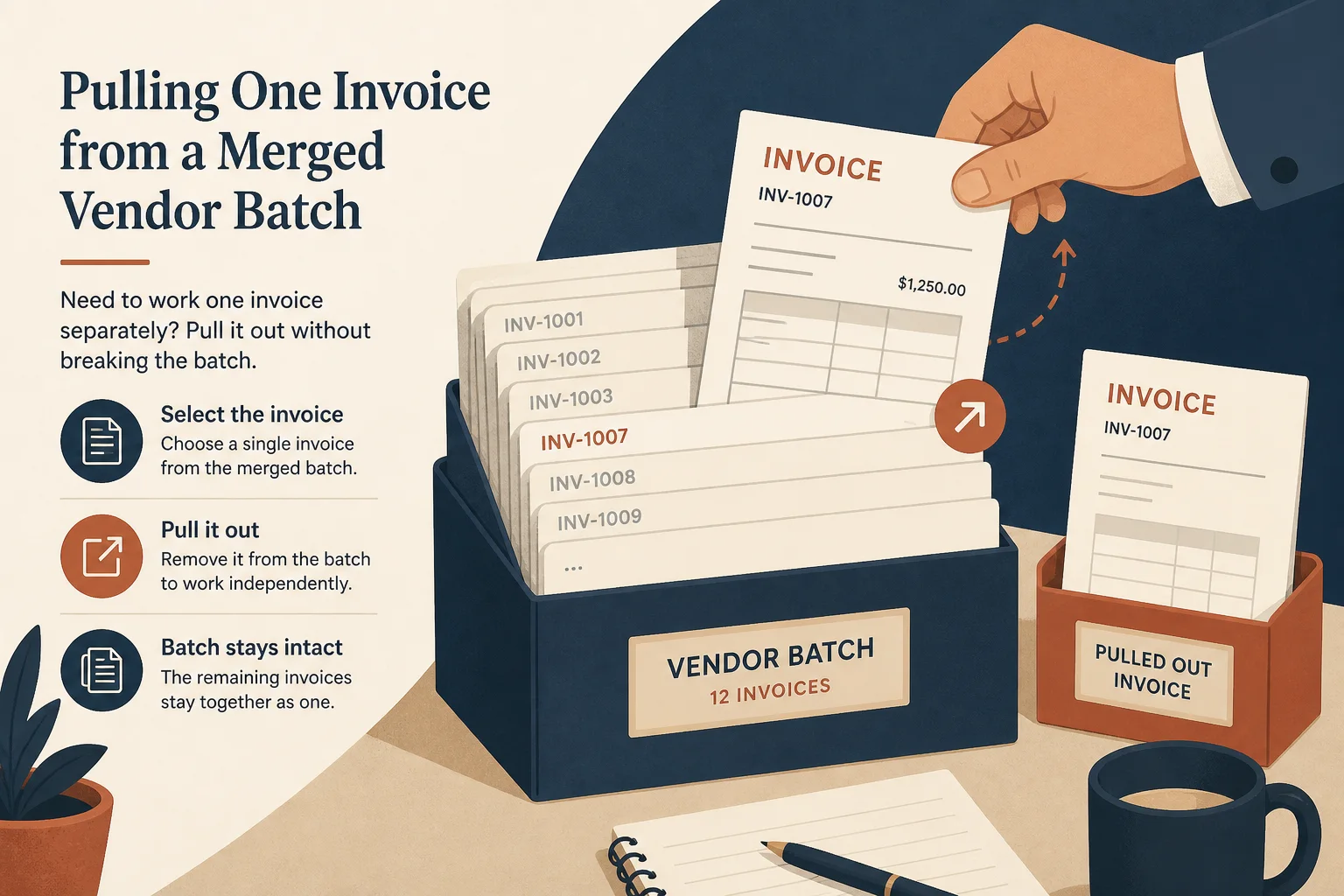
Pull a single vendor invoice out of a merged run.
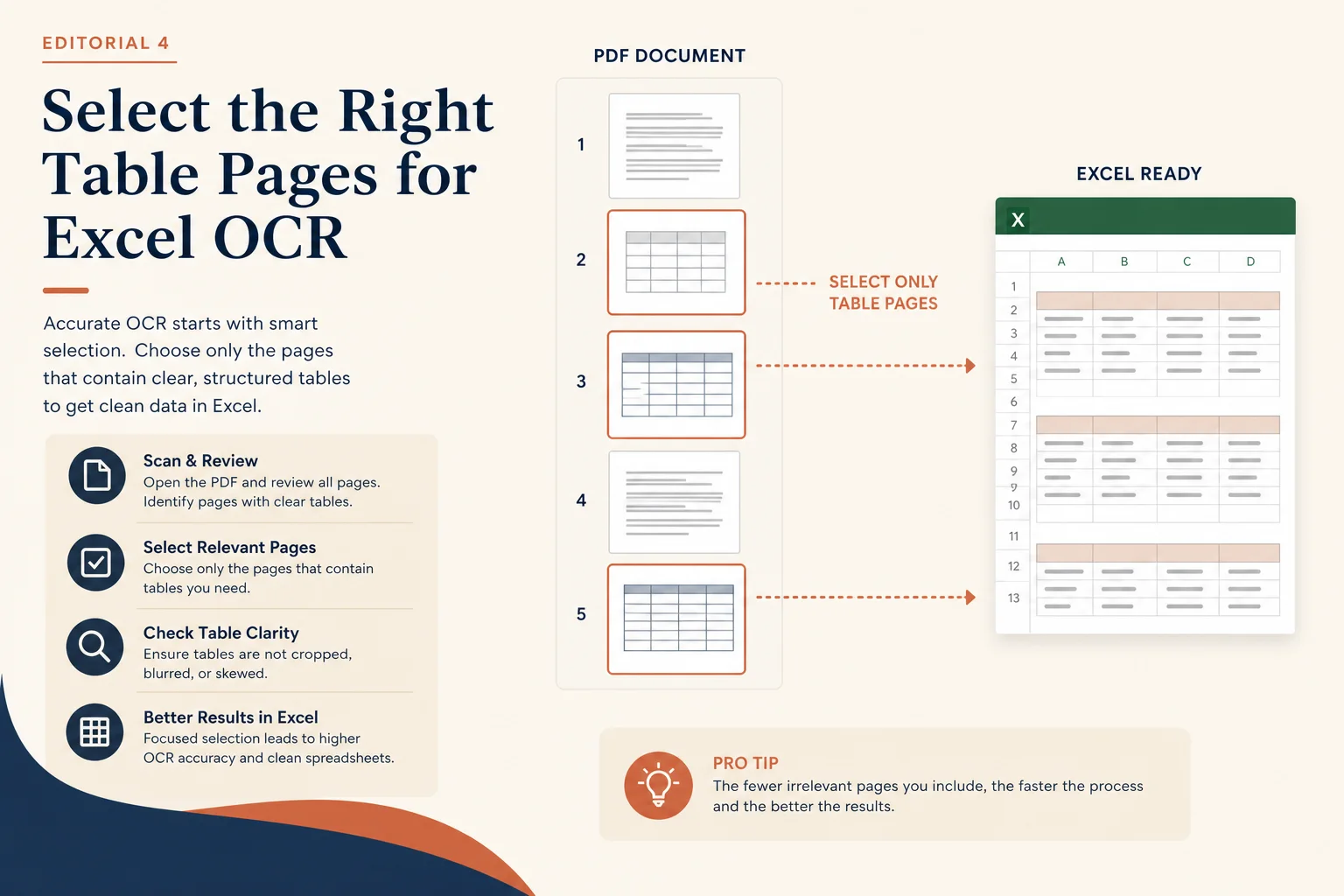
Extract first to spend credits only on pages with tables.
Range split or full organize when that fits better.
Cut a continuous from–to page range.
Open toolReorder before you extract.
Open toolExtract transactions when pages are scans.
Open toolPull tables into a spreadsheet after you prep the file.
Open toolBrowse the free tools hub.
Open tool