
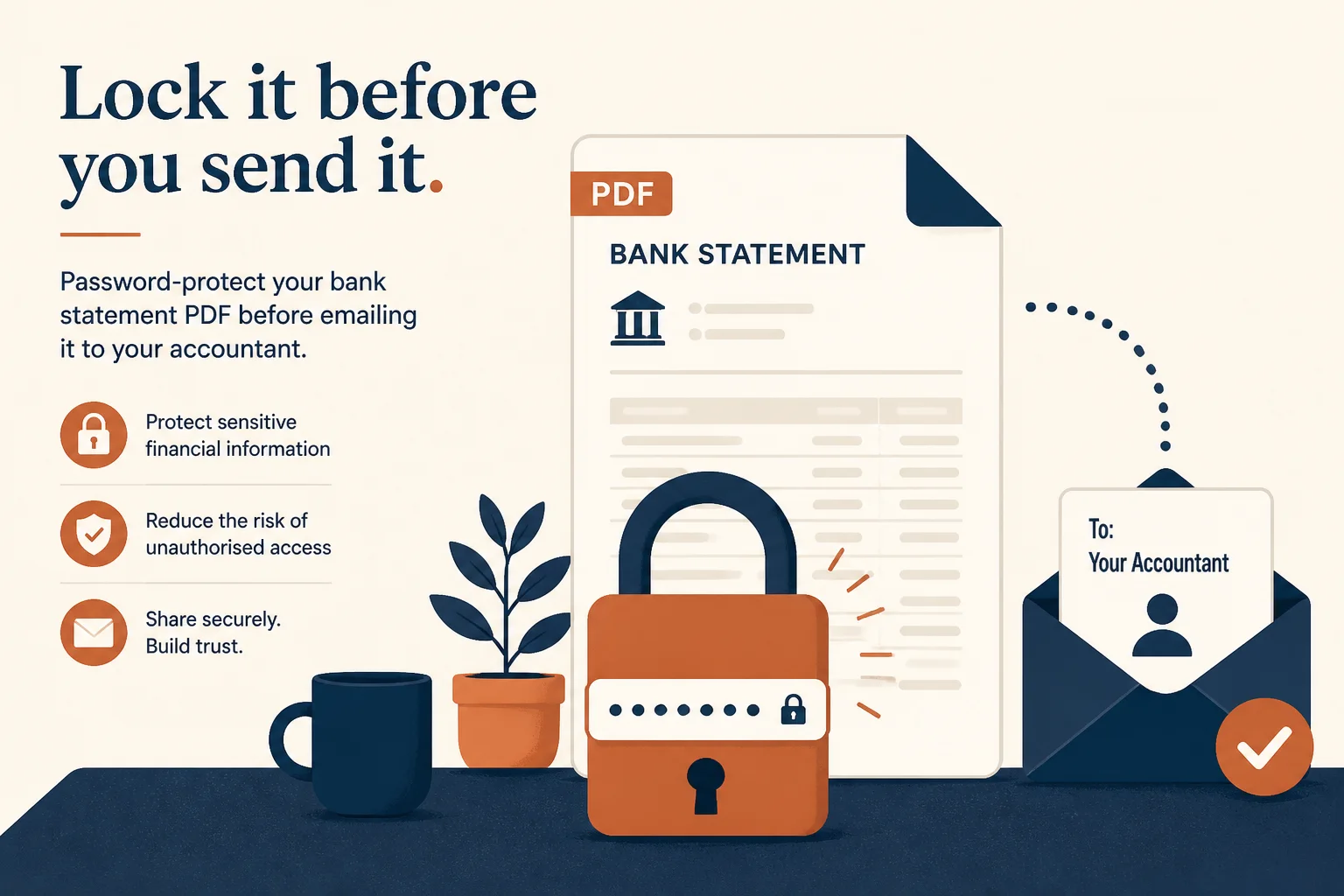
Send to accountant
Add a password, then share the passphrase on a separate channel.
Protect statement packs before email — or unlock a file you already have the password for — without uploading to a server.
Drop a PDF you own to lock or unlock
Files stay in your browser for this tool.
Only use passwords on files you own or may open.
Drop a statement or invoice file you control.
Set a new open password, or enter the current one to unlock.
Save the protected or unlocked copy.
Finance files travel — protect them in transit.
Email attachments
Lock packs before sending outside the firm
Shared drives
Add a password for sensitive exports
Portal downloads
Unlock a bank PDF you already know the PIN for
Your files only
Do not attempt to bypass others’ protection
Lock for sharing — unlock for your own processing.
Add a password, then share the passphrase on a separate channel.
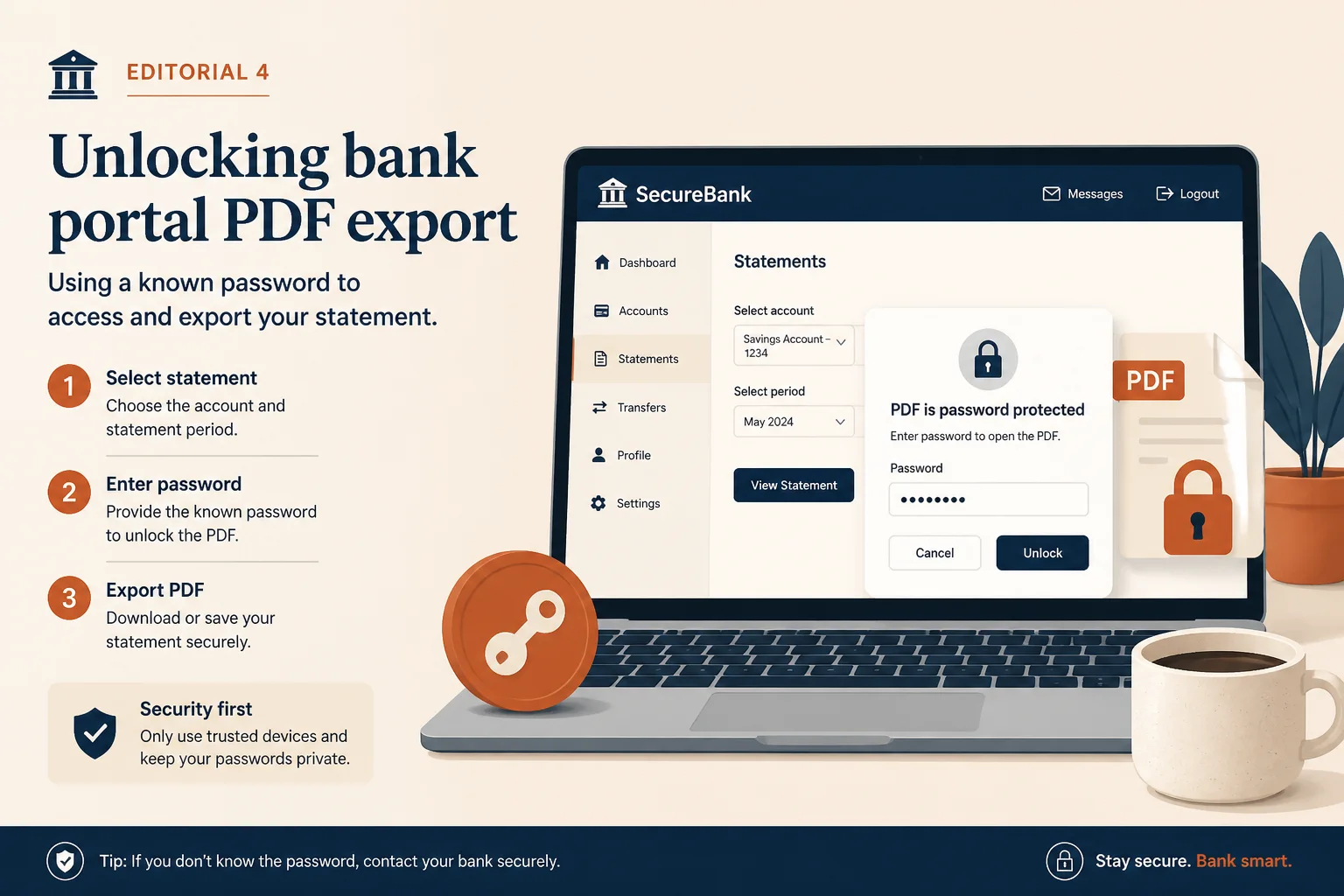
Remove a known portal password so you can merge or OCR.
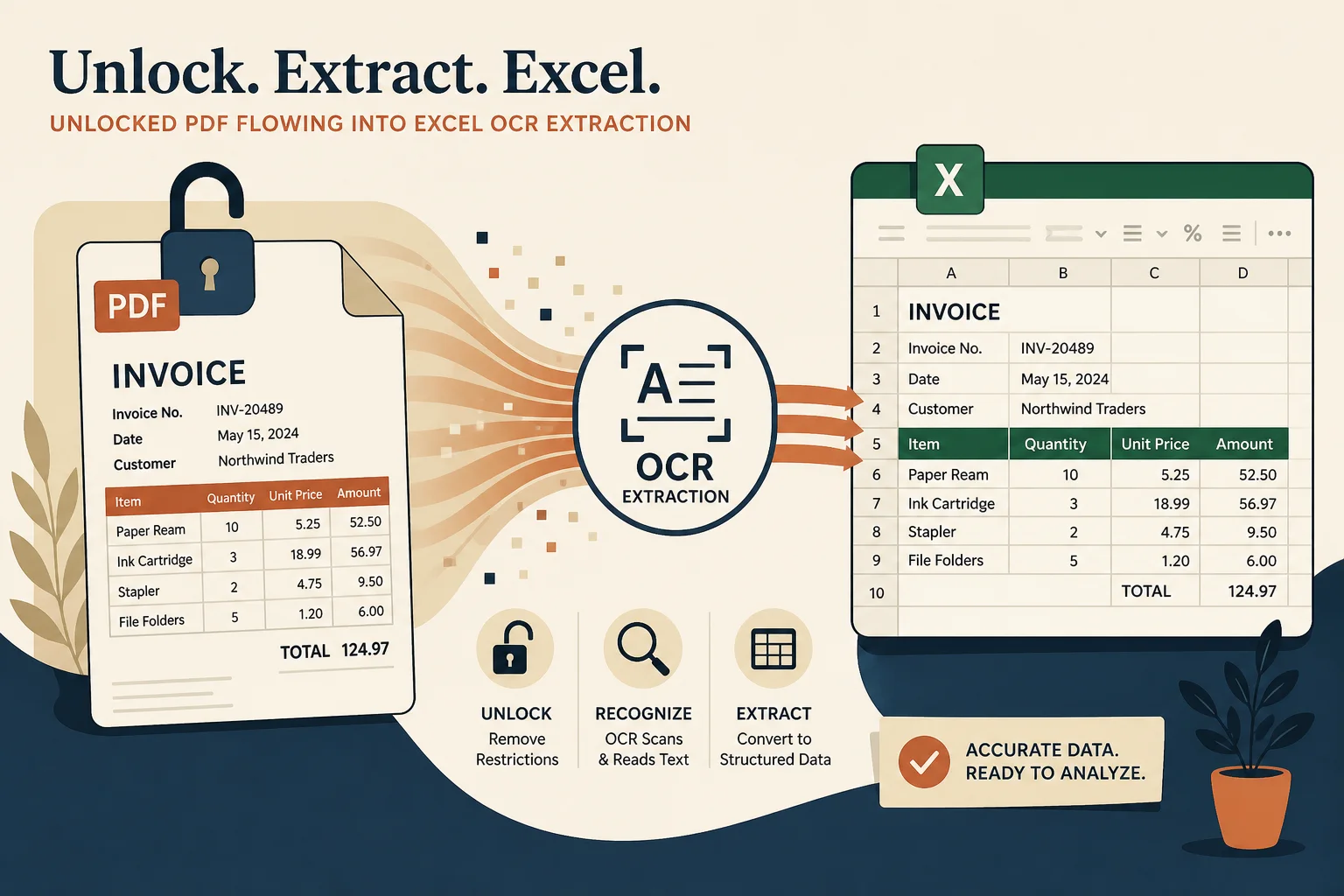
Unlock first, then pull transactions with OCR.
After unlock, merge or convert as usual.
Combine unlocked statement months.
Open toolMark copies as confidential.
Open toolExtract transactions when pages are scans.
Open toolPull tables into a spreadsheet after you prep the file.
Open toolBrowse the free tools hub.
Open tool